Wednesday, 11 March 2015

For What’s Next: the new Chromebook Pixel and USB Type-C

Today we’re introducing an updated, more powerful Chromebook Pixel. While the new Pixel has many improvements, one feature that is especially exciting is universal charging, data, and display in the form of USB Type-C. We joined forces with the USB Implementers Forum and leaders across the industry to create the new standard over the past few years, and are now starting to see its debut in devices.


The case for a new connector

Mobile devices charge from a USB port, which has worked pretty well, even though USB wasn’t designed for that purpose. Micro-USB can deliver up to 10 Watts, which charges small mobile devices reasonably quickly. However, as phones get bigger and batteries charge faster, there’s a distinct need for something that can supply more power than micro-USB.

Laptops, on the other hand, have no common charge standard. Each one tends to have its own proprietary connector and power supply to deliver just the right combination of voltage and current to charge that laptop at its most efficient point. Laptops also need a lot more than 10 Watts of power.

More power and speed

USB Type-C combines these varying needs in a durable, high power, high data-rate connector powerful enough for laptops yet small enough for mobile phones. It also does so in a symmetrical design to eliminate the guesswork when plugging in.

USB Type-C can deliver up to 100W of power, which is more than even the largest laptops typically need. When a USB Type-C enabled device is plugged in, the charger negotiates the right power for that device.  That way, phones, laptops and tablets can all be powered from the same charger.

Not only does Type-C enable universal charging, but it also allows high-speed data and high resolution display. Type-C was designed to transfer data at speeds up to 20Gbs. Since current USB devices max out at 5Gbs, there’s room to grow.

From the same port, Type-C also enables high resolution display output to a monitor or TV through DisplayPort and HDMI accessories.

New possibilities

USB Type-C on the new Pixel means that one day soon you’ll be able to charge your phone, laptop, and tablet all from the same power charger.

There’s a Type-C port on both sides of the Pixel, so you can output display and charge at the same time. It also means you can charge from either side of your laptop, something that’s really convenient on a crowded desk.

Forgot your power adapter? Plug in the optional Type-C to USB A cable, and top up from any traditional USB port, your phone charger, or a USB power bank. It won’t charge as fast as the included 60W supply, but it’s handy in a pinch.  For the truly adventurous, you could even charge your Pixel from another Pixel!**

As more devices use Type-C, you can imagine a world where chargers become ubiquitous to the point where device makers won’t need to ship them with a new phone or laptop. We’ve even open sourced our work on Type-C adapters so that you’ll have more choice of accessories. That’s good for your wallet and the environment.

We’re really excited about the new Chromebook Pixel and USB Type-C. To learn more, head over to the Google Store, the new home for the latest devices made with Google, or the Pixel site.

Posted by Adam Rodriguez, Product Manager at Google

*Battery life tested using Chromium standard PowerLoadTest at default brightness. The PowerLoadTest was created to emulate average user behavior and measure the resultant battery life. Charge time testing is measured by battery capacity increase with lid closed divided by average energy usage during PowerLoadtest. Battery life and charge time may vary depending on usage and other conditions.
**Pixel to Pixel charging is possible, but it won’t charge all that fast. You could theoretically connect your Pixel to itself, but we recommend against experimenting with perpetual energy machines.

Tuesday, 24 February 2015

1,000 Chrome Experiments and counting...

In 2009, we launched Chrome Experiments to showcase the work of creative coders who pushed HTML5 and JavaScript to the limits in order to build beautiful, unique web experiences. At first, the site had only 19 experiments, but we hoped they would be a source of inspiration for programmers who made art with open web technologies. Since then, we’ve been humbled by the quantity and quality of new submissions. Today, we’ve reached a major milestone: 1,000 experiments.

To celebrate, we’ve created a special Experiment #1000 that visualizes every other experiment on the site. You can explore all 1,000 in a variety of ways, including a real-time code editor and a timeline with selectable tags. Click on the WebGL tag, for example, and you’ll see how that technology surged in popularity when it was added to Chrome in 2011.
A visualization of the first 1,000 Chrome Experiments

Along with Experiment #1000, we’ve redesigned ChromeExperiments.com using Polymer. It’s mobile-friendly, so no matter what kind of phone or tablet you have, or how you hold it, the site scales smoothly. If you’re on your phone, you can also filter the list to mobile-compatible experiments by selecting the Mobile tag.
The new ChromeExperiments.com

Looking back at the old experiments this month has been a joy. Highlights include Mr.doob’s classic Ball Pool (one of the original 19 experiments), the first WebGL experiment by Gregg Tavares (try 4,000 fish – this used to be very slow!), and Dinahmoe’s multiplayer audio toy Plink, which combines the Web Audio API with Node.js. At Google I/O in 2012, we released the first mobile experiments, including AlteredQualia’s Multitouch Toy and Dominic Szablewski’s X-Type. And each year afterward, new web technologies appeared, like getUserMedia and the Web Speech API. It’s been a wonderful journey.

Thank you to everyone who has supported the site, and most of all to the creators who have shared their work. We’re excited to see what experiments you come up with next.

Valdean Klump, Data Arts Team

Monday, 23 February 2015

More Protection from Unwanted Software

[Cross-posted on the Google Online Security blog]

SafeBrowsing helps keep you safe online and includes protection against unwanted software that makes undesirable changes to your computer or interferes with your online experience.

We recently expanded our efforts in Chrome, Search, and ads to keep you even safer from sites where these nefarious downloads are available.

  • Chrome: Now, in addition to showing warnings before you download unwanted software, Chrome will show you a new warning, like the one below, before you visit a site that encourages downloads of unwanted software.


  • Search: Google Search now incorporates signals that identify such deceptive sites.  This change reduces the chances you’ll visit these sites via our search results.
  • Ads: We recently began to disable Google ads that lead to sites with unwanted software.

If you’re a site owner, we recommend that you register your site with Google Webmaster Tools. This will help you stay informed when we find something on your site that leads people to download unwanted software, and will provide you with helpful tips to resolve such issues.

We’re constantly working to keep people safe across the web. Read more about Safe Browsing technology and our work to protect users here.

Posted by Lucas Ballard, Software Engineer

Monday, 5 January 2015

Introducing Google Cast for audio

In 2014, many of you—millions, in fact—helped make Chromecast one of the most popular streaming media devices globally. It's been exciting to bring Chromecast from one country to now 27 countries, with more to come in 2015. Chromecast usage per device has increased by 60% since launch due to the growing roster of new apps and features.

And today, we're announcing Google Cast for audio, which embeds the same technology behind Chromecast into speakers, sound bars, and A/V receivers. Just like Chromecast, simply tap the cast button in your favorite music or radio app on Android, iOS, or the web, and select a Google Cast Ready speaker to get the party started.

Google Cast Ready speakers pull content directly from the cloud, so you’ll get the best audio quality and can freely multi-task on your phone, tablet, or laptop, all without straining the battery. These speakers will work with a growing list of apps including Deezer, Google Play Music, iHeartRadio, NPR One, Pandora, Rdio, TuneIn, and many more.


The first Google Cast Ready speakers will first be available in the US this spring from lead brands Sony, LG, and HEOS by Denon with more brands coming later in 2015 with the support of chip makers Broadcom, Marvell, MediaTek and system integrator Libre Wireless.These products will join a growing Google Cast ecosystem, which includes more Android TVs, game consoles and set-top boxes.

Posted by Tomer Shekel, Product Manager, Google Cast for audio

Thursday, 11 December 2014

Chromecast, now with guest mode

You’re having friends over and before you know it, a battle has ensued in your living room over who can show the funniest YouTube video. Now, it’s even easier for your friends to cast to your TV without first having to connect to your WiFi. With the new guest mode feature, anyone with an Android device can cast to your TV as long as they’re in the same room.

To set up guest mode for your Chromecast, open the Chromecast app on your Android phone or tablet and select “Devices” from the navigation drawer. Choose your Chromecast device, tap the “Guest mode” setting and then turn the slider to “on.”

See it in action:
This update is rolling out starting today. Just make sure your Chromecast app is up to date on your Android phone or tablet. To learn more about this feature, visit chromecast.com/guestmode.

Posted by Jagjit Chawla, Product Manager and Host Extraordinaire

Tuesday, 25 November 2014

Now casting: Comedy Central, Nick and Sesame Street Go

Chromecast is adding seven more great apps to your casting queue. Get bigger laughs with The Daily Show on Comedy Central, learn with Elmo on Sesame Street Go, or cast Nickelodeon and let Spongebob keep your family entertained. And, no matter how far you travel this winter, stay connected with TuneIn for international radio stations and millions of podcasts. With EPIX, YuppTV and ENCORE Play also casting, you have a full lineup of shows, sports, games and movies to last throughout the holiday season.

Posted by Faisal Feroz, Partner Engineering Manager, Elmo’s best friend

Wednesday, 19 November 2014

Bookmarks get a new look and learn a few new tricks

We all know how hard it can be to find something once you've saved it. Starting today, it's a lot easier thanks to an update to bookmarks in the latest Chrome Beta. We’ll be rolling this feature gradually out over the next few weeks. Try out the new Bookmarks Manager by going to your Chrome Menu  > Bookmarks > Bookmarks Manager.


Now when you create a bookmark, you can select an image and add a note or snippet to help you find that bookmark more quickly later. Google will also suggest a folder if it seems like it could be a fit.

The new bookmarks get even better if you’re signed in to Chrome with sync enabled:
  • Improved search: Quickly find that elusive page with search powered by Google, which looks not only at the bookmark title and snippet, but also the bookmarked page’s content. 
  • Collect bookmarks by topic: Your bookmarks will automatically be organized by topic, like “Tokyo” and “Photography.” If you’d rather, you can still organize them into folders yourself.
  • Familiar bookmarks, new look: Your existing bookmarks will automatically get updated with images and descriptions, wherever possible.
  • Share: Have a folder of favorite bookmarks? You can make it public and share the link with whomever you’d like to access it. 
  • Access your bookmarks anywhere: Bookmarked an article on your phone to finish reading on your laptop? Chrome will continue to sync your bookmarks across all of your devices, just like it does today. 

Adding, organizing, and browsing your bookmarks is now easier (and prettier) than ever before. Have any questions about your new bookmarks? Join the discussion here.

Posted by Cynthia Johanson, Product Manager and Super Star-rer

Tuesday, 18 November 2014

Walk in the footsteps of heroes in “A Journey Through Middle-earth”

In time for the epic conclusion to the Hobbit trilogy we’ve updated the Chrome Experiment, “A Journey Through Middle-earth.” Whether you’re a hobbit, wizard or dwarf (oh yeah, humans too) you can now relive all of the epic Middle-earth adventures, from Frodo’s journey to Mount Doom in The Lord of the Rings: The Fellowship of the Ring to Bilbo’s final battle in The Hobbit: The Battle of the Five Armies, in theaters December 17th. This year's Chrome Experiment was developed by North Kingdom in collaboration with Warner Bros. Pictures, New Line Cinema and Metro-Goldwyn-Mayer Pictures (MGM).

Your adventure starts on a beautiful, interactive map of Middle-earth where you can explore all 27 locations from the Lord of the Rings and Hobbit film trilogies. This year’s map is rich with 3D animations highlighting the paths of eight key characters, including Bilbo, Gandalf and Bard.

Completely new for this year’s version is a peer-to-peer battle game where you can challenge your friends to a test of skill. The peer-to-peer gameplay experience was built primarily using the latest web technologies, including WebRTC and WebGL. It’s touch optimized for laptops, phones and tablets, bringing you a stunning interactive experience across all your devices.


Just go to goo.gl/TheHobbit on your laptop, phone or tablet to check out the latest Chrome Experiment, “A Journey through Middle-earth.”

And for those of you who are more interested in geeking out about web development than exploring Middle-earth, check out our technical case study on HTML5Rocks.com.

Posted by Ian Ellison-Taylor, Chrome Product Manager and human defender of Minas Tirith

Tuesday, 11 November 2014

Introducing fun family games for Chromecast

Over the past year Chromecast has added hundreds of your favorite apps, and brought anything on the web to the TV via Android mirroring and Chrome tab casting. Just in time for the holidays, we’re adding even more apps to the list. So whether you’re looking forward to a quiet evening watching your favorite holiday heartwarmer or a rousing game night with the gang, there’s something for everyone.

Family-friendly games for Chromecast

Chromecast uses your phone or tablet as the controller and your TV screen like a game or score board to let you play games like Wheel of Fortune or classics like Hasbro’s Monopoly Dash, Scrabble Blitz, Connect Four Quads and Simon Swipe on your big screen.

If you prefer to dance around, check out Just Dance Now. Your smartphone can tell if you’re fist pumping high or shaking your hands down low, which earns you points. To show off your mental moves instead, Big Web Quiz and Emoji Party for Chromecast bring trivia to the TV. Astound your friends with your answers to questions like: How many goats tall is Taylor Swift? What does the "Queen of Hearts" look like in emoji? Big Web Quiz uses Google Knowledge Graph to create hundreds of questions, while Emoji Party uses your knowledge of emojis to guess movie titles based on the pictures.

There's no hassle or expense with extra controllers. Anyone with a phone or tablet can join in on any of these games, so download these apps from the Play Store or App Store so all your family and friends can shake it, show off their smarts or just play.

More movies and shows with Showtime Anytime and Starz

Nothing says winter like a TV binge on a cold, gray day. With Showtime Anytime you can catch up on past and current seasons of the network’s original series including Homeland and The Affair. With Starz Play, get your tartan on with the first season of Outlander, or have a marathon of Friday night flicks.

Easily explore and discover new things to cast 

To make it easier for you to navigate through the many great apps available with Chromecast and find exactly what you’d like to cast, we’ve added category tabs to the chromecast.com/apps page. Choose from TV & Movies, Music & Audio, Games, Sports, Photos & Video, or More.

Posted by Wendi Zhang, three-peat Scrabble champ

Wednesday, 15 October 2014

Translate web pages more easily with the new Google Translate Chrome Extension

[Cross-posted on the Google Translate blog]

When you're browsing the web, you might come across a page where some of the text is in a different language. With the new update to the Google Translate Chrome extension, you can translate just that piece of text, without worrying about the rest of the page.

Simply highlight the text that you want to translate, and then click the Translate icon that appears. You can also right click and choose "Google Translate". If you click the icon in the upper right of your browser window, with no text highlighted, you can translate the entire web page.
You can download and try the Translate extension from the Chrome Web Store; if you already have the extension installed, it will be updated automatically.

The Translate team is working hard to connect people by breaking language barriers across computers, mobile devices and Internet browsers. Our users make more than 1 billion translations a day, and we hope that our recent update will make their translation tasks a little easier!

Posted by Chao Tian, Software Engineer

Thursday, 9 October 2014

A simpler, faster way to use Hangouts on your desktop

When you’re chatting with your friends and family, you want your conversations easily accessible, not buried in browser windows. Today, we’re introducing the Hangouts Chrome App for Chrome OS and Windows -- a simpler, faster way to use Hangouts on your computer alongside whatever else you’re doing.

The new app brings the best of Hangouts to your desktop, plus some improvements we think you’ll love:
Keep the conversation going, without taking over your desktop. The app has a streamlined design that keeps your chats accessible without getting in the way of everything else. Your contact list and all your chats are condensed into one easy to toggle window. Also, you’ll get integrated notifications that alert you to new messages, so you can quickly find the conversation you’re looking for.

More app, less Chrome. It works outside of your browser so your chats are always available, not tucked away inside a window. You’ll get all your messages as long as you have the app running, and your chats will sync across Hangouts on all your devices.

Voice calling from your desktop. The app now has all the video and voice features you’re used to in Hangouts. We recently announced you can make phone calls to any number in the world (via Hangouts dialer) and now you can do this right from your desktop.  If you use Google Voice, the app includes complete Google Voice support, so you can make and receive calls, and get your voicemails and SMS messages directly in Hangouts.

Download the Hangouts Chrome App today and get started with a new experience tailor-made for your desktop.  If you’re already using the Hangouts Chrome extension on your ChromeOS or Windows computer, you’ll also see a promo to try the new app over the next few weeks. To learn more, visit the Hangouts Help Center.

Posted by David Levin, Software Engineer, and the very model of a modern Hangout Handler

Wednesday, 8 October 2014

Turn your TV screen into a beautiful backdrop

You’ve told us you love the photography that shows up on your TV when you’re taking a break from casting videos with Chromecast. But many of you have also told us you want to add your own photos on the screen. Now, you can.

With a new backdrop option, you can customize your TV screen with:
  • Your favorite photo albums from Google+
  • Amazing artwork from galleries and museums around the world via the Google Cultural Institute
  • News and lifestyle images from The New York Times, The Guardian, Saveur and more (U.S. only)
  • Satellite imagery of some of the hardest-to-reach places on Earth from Google Maps
  • and even more beautiful photos from the Google+ community
To customize your Chromecast, open the Chromecast app on your phone or tablet and select “Backdrop” from the left menu. Then, choose the topics for types of imagery you want to show up on the TV.


If a picture sparks your curiosity, you can learn more about it by opening the Chromecast app, selecting “Backdrop” from the left menu and tapping on the card to find out more. Or, simply open the Google app on your Android or iOS device, tap on the microphone icon and ask “What’s on my Chromecast?”

This update is rolling out starting today. Just make sure your Chromecast app is up to date on your Android phone or tablet, iPhone, or iPad. To learn more on how to set it up, visit chromecast.com/backdrop.
Posted by Raunaq Shah, Chromecast Product Manager and Master Caster

Tuesday, 16 September 2014

Now casting: WATCH Disney Channel, Twitch, iHeart Radio and DramaFever for Chromecast

Chromecast has a little something for everyone in the family to enjoy, and today we’re adding even more options for kids, music lovers and gamers.

For kids of all ages, we're introducing the WATCH Disney, WATCH Disney Junior and WATCH Disney XD apps. So now you'll be able to watch Girl Meets World, Doc McStuffins, and Star Wars Rebels on demand from the Disney Android and iOS apps. (To watch live stream of the network or recent episodes, you’ll need to sign in with a participating TV provider account.)

Music aficionados can now cast and blast music from the best speakers in the house with iHeartRadio. The app lets you listen to more than 1,500 live radio stations from all over the U.S. or customize your own.

You can also join 60 million gamers on Twitch to watch and talk about video games. Get insights from both casual gamers and some of the biggest professional players competing in sold out stadiums. Cast Twitch content from the web, Android and iOS apps.

If international dramas are your favorite, look no further than DramaFever to find more than 15,000 TV episodes. Finally, in case you missed it, last month we also added WATCH ABC and NPR One to the Chromecast family. So make sure to update your apps and check out the latest on chromecast.com/apps.

Posted by Jennifer Wasson, Chromecast partnerships

Thursday, 11 September 2014

First set of Android apps coming to a Chromebook near you

Chromebooks were designed to keep up with you on the go—they’re thin and light, have long battery lives, resume instantly, and are easy to use. Today, we're making Chromebooks even more mobile by bringing the first set of Android apps to Chrome OS:
  • Duolingo - a fun and free way to learn a new language before your next trip
  • Evernote - write, collect and find what matters to you, with a full-size keyboard and touchscreen
  • Sight Words - a delightful way for you to help improve your child's reading skills
  • Vine - create short, beautiful, looping videos in a simple and fun way 
These first apps are the result of a project called the App Runtime for Chrome (Beta), which we announced earlier this summer at Google I/O. Over the coming months, we’ll be working with a select group of Android developers to add more of your favorite apps so you’ll have a more seamless experience across your Android phone and Chromebook.

In the meantime, please tell us which of your favorite Android apps you’d like to see on your Chromebook.

Posted by Ken Mixter, Software Engineer & Josh Woodward, Product Manager (Android Dreamers)

Thursday, 28 August 2014

This time it's personal

Anyone who’s argued over the TV remote knows that sharing a living room doesn’t mean you want to share everything else. The same is true on the web. So in the latest Chrome beta, we're exploring a new way for you to share your computer without sharing your business.

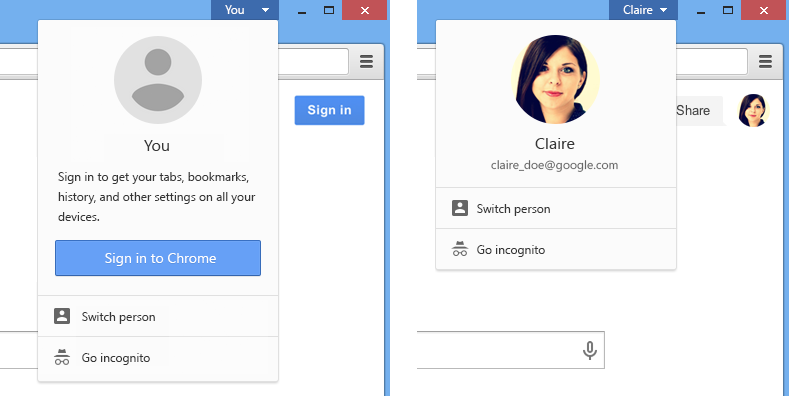
Get started by clicking on “You” in the upper right corner of your Chrome window and then clicking “Sign in to Chrome.” You’ll be able to switch devices and pick up where you left off with all of your tabs, bookmarks, and history automatically kept in sync.

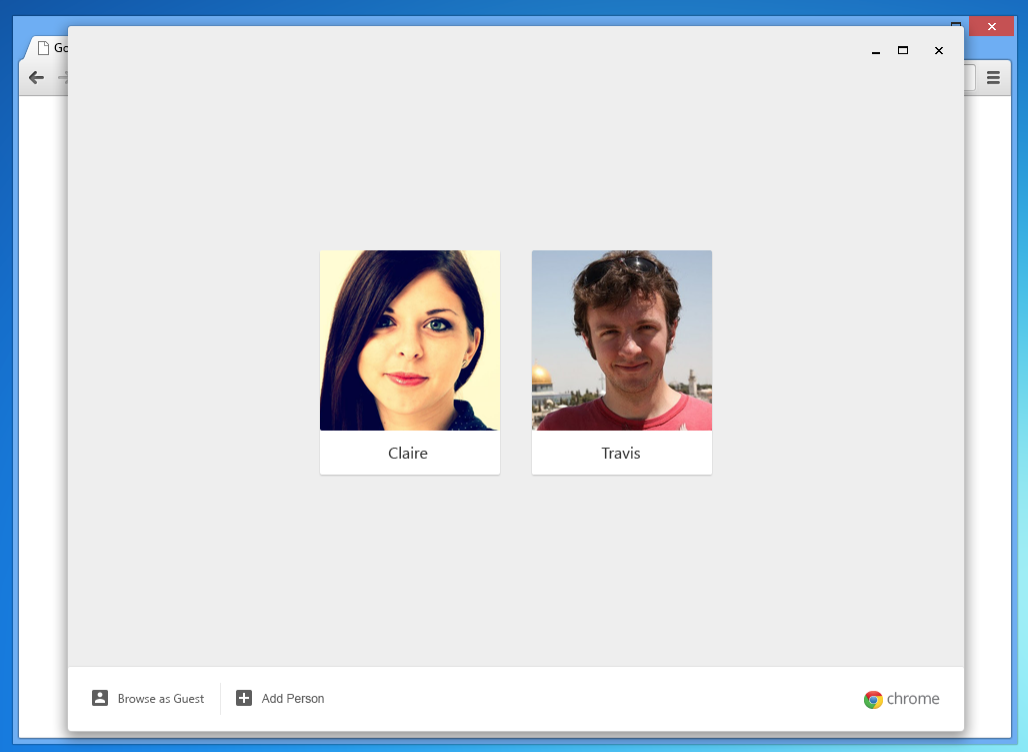
If you share a computer, click "Switch person" to add your profile and get your own bookmarks, apps, and theme. Switching lets you keep your stuff separate.
With the new “Guest mode,” you can let others use Chrome without letting them see your stuff. And after they’ve closed out their tabs, their browsing information is deleted from your computer as well. To enable Guest mode, click on You (or your name if you’ve signed in) > Switch person > Browse as Guest.
Here's to no more login tango or making friends open incognito tabs. Happy (shared) browsing!

Posted by Roger Tawa, your personal Chrome Engineer

Thursday, 14 August 2014

That’s not the download you’re looking for...

[Cross-posted on the Google Online Security Blog]

You should be able to use the web safely, without fear that malware could take control of your computer, or that you could be tricked into giving up personal information in a phishing scam.

That’s why we’ve invested so much in tools that protect you online. Our Safe Browsing service protects you from malicious websites and warns you about malicious downloads in Chrome. We’re currently showing more than three million download warnings per week—and because we make this technology available for other browsers to use, we can help keep 1.1 billion people safe.

Starting next week, we’ll be expanding Safe Browsing protection against additional kinds of deceptive software: programs disguised as a helpful download that actually make unexpected changes to your computer—for instance, switching your homepage or other browser settings to ones you don’t want.

We’ll show a warning in Chrome whenever an attempt is made to trick you into downloading and installing such software. (If you still wish to proceed despite the warning, you can access it from your Downloads list.)
As always, be careful and make sure you trust the source when downloading software. Check out these tips to learn how you can stay safe on the web.

Posted by Moheeb Abu Rajab, Staff Engineer, Google Security

Monday, 11 August 2014

A new type of Chromebook with extra-long battery life

Chromebooks were designed for your mobile lifestyle. They’re thin and light, resume instantly, and are easy to use.

Starting today, we’re welcoming a new type of Chromebook into the family, beginning with the Acer Chromebook 13. This new device uses the NVIDIA Tegra K1 processor, so you get the speed you’re used to from Chromebooks with a battery life up to 13 hours. What could you do in thirteen hours?
  • Fly from New York to Beijing
  • Watch the entire set of Harry Potter movies
  • Complete an Iron Man triathlon (average finish time is 12hr 13min)
  • Finish a 1-credit college course
  • Watch 390 adorable cat videos (2 min per video)
  • Use your Chromebook 13 to watch, play and get a lot done
The Acer Chromebook 13 is available now (with optional touchscreen and 1080p resolution) at Amazon and other online retailers from $279.

Posted by Bill Brougher, Engineering Director & frequent flyer


Friday, 8 August 2014

Space, Chrome and the amazing journey of the ISEE-3

Unless you’re a rocket scientist, you’ve probably never heard the story of the International Sun/Earth Explorer 3 (ISEE-3) - yet it has had one of the most fascinating journeys in all of space flight. Originally launched in 1978 to study the Sun, it was the first spacecraft in the world to fly by a comet and has been orbiting the sun for billions of miles since 1986. Now, the ISEE-3 is headed back towards Earth and is on its way to becoming the first citizen science spacecraft thanks to a crowdfunded effort called The ISEE-3: Reboot Project.

There’s also a new way for everyone to get involved. In a new Chrome Experiment called A Spacecraft for All, you can follow the unlikely odyssey of the ISEE-3 using Chrome’s interactive WebGL graphics and video. You can re-live its story, read its re-activated data instruments, learn about its current position and trajectory—and explore space along the way. It’s all designed to make space science simple, fun and accessible enough for anyone eager to learn—whether you’re a Ph.D. or grade school student.
The experience will build up to a live event this Sunday, August 10, when the ISEE-3 will fly by the Moon for the first time in decades. We’ll document every second with a live lunar flyby demo, and we’re inviting the entire world to join in. You can follow the spacecraft’s trajectory real-time, along with interviews with the Reboot team, visits from the original ISEE-3 Flight Director, and live data measurements coming directly from space!

Explore the journey of this decorated spacecraft and join us live from the control room on Sunday, August 10 at 10:30am PT / 1:30pm ET.

Suzanne Chambers, Executive Producer & Space Cadet, Creative Lab New York

Thursday, 24 July 2014

Simplified sign-in with Chrome for Android

If you’ve typed your password on a tiny on-screen keyboard recently, you know how frustrating it can be. Well, say goodbye to all those "x"s when you meant "c"s. Now with the latest Chrome beta for Android when you’re signed into Chrome, you won’t need to sign in again on Google websites, including Gmail, Maps or Search.
To sign into Chrome, simply click on > Settings > Sign in to Chrome.
When you add more than one Google Account to your device, you'll also be automatically signed in to those accounts on the web. In addition to having your accounts a click away, your bookmarks, passwords, and other Chrome stuff will be kept in sync across your devices, using the account you choose.

For the eagle-eyed out there, you might also notice that this version of Chrome is starting to sport some of the elements of Material Design, Android's latest design look and feel, as well:


Posted by Travis McCoy, Product Manager and Password Fumbler

Happy 1st Birthday, Chromecast!

Today our little one, Chromecast, celebrates a year. We built Chromecast to make it easier for people to enjoy their favorite entertainment from their phone, tablet or laptop on the largest screen in the house—the TV. Since Chromecast launched, people have hit the cast button more than 400 million times to enjoy their favorite sports, music, premium movies and TV shows. We’ve added hundreds of your favorite apps, including WatchESPN, Pandora, Hulu Plus, HBO GO and PBS Kids; announced new features like mirroring your Android device to the TV and expanded to 30,000 stores across 20 countries.
To celebrate Chromecast’s birthday, Google Play Music is offering All Access subscriptions free for 90 days to anyone with a Chromecast (and who isn’t already an All Access subscriber). This offer will be available in the U.S. starting today, July 24, 2014 through September 30, 2014. If you already have a Chromecast, go to chromecast.com/offers to redeem this offer. Visit the Help Center to learn more.   
Whether you’re a Chromecast old-timer or just getting started, here are five fun ways to get more out of your TV experience:

Jam out to a summertime playlist
Whether you’re hosting a dinner party or cleaning up around the house, enjoy your favorite summer hits from Google Play Music, Songza or Pandora on your TV.

Watch a video playlist from YouTube
Create a video playlist from the YouTube app and cast it to the TV. Friends can add videos to the queue, so you’ll always have another one on deck.

Cast your photos to the big screen 
No more figuring out old-fashioned projectors or huddling around the phone. Cast your photos from your Android phone or tablet so everyone can enjoy those beautiful pics from your camping trip in Yosemite or your sister’s wedding in Hawaii. 

Enjoy action-packed live sports in your living room 
Tune in to live sports with MLB.TV Premium and MLS Live on Chromecast. And come fall, you can invite your buddies over, pass around the popcorn bowl, and watch college football or NFL’s Monday Night Football with the WatchESPN app on the living room TV. 

Work up a sweat 
With apps like Daily Burn on the rise, it’s easier than ever to work out at home. But can you really do downward-facing dog while holding your tablet? Cast your workout so you can truly get a good morning sweat session in.

We’re not done yet. In the coming months, we’ll be making more updates, like the ability to allow others to cast to your TV without needing to be on the same WiFi network, and a customizable homescreen with personal photos or beautiful art. Your Chromecast will be automatically updated with these new features once they’re available. 

Happy birthday, Chromecast. Here’s to another great year ahead! 

Posted by Mario Queiroz, proud papa of Chromecast